Data Visualization Templates: The Fast Track to Professional Dashboards (2026 Guide)
Cover Image

Here is a scenario every developer knows: Monday morning, leadership stakeholder requests a "simple" analytics dashboard by Friday. You open your IDE and stare at a blank module, thinking—where do I even start? Line charts, bar charts, heatmaps... each needs responsive scaling, accessible tooltips, unified legends, and reliable edge-case handling.
By Thursday, you've completely rewritten your D3 axis formatting logic four times.
What if you didn't have to start from scratch? In 2026, data visualization templates are the secret weapon of developers who ship dashboards fast. They provide battle-tested, componentized starting points so you can focus on what the data means, rather than how to draw SVG rectangles.
This guide explores what makes a great visualization template, provides modern patterns across popular frameworks, and shows you how to build your own reusable dashboard toolkit.
1. The Hidden Complexity of Dashboard Charts
At first glance, a bar chart seems simple enough: drawing boxes based on values. But dig deeper into production requirements and you hit a maze of edge cases.
Common rendering complexities include:
- Responsive scaling: How does the chart behave when reshaped from a 1200px desktop grid to a 320px mobile viewport?
- Data gaps: What happens when a time-series payload drops values or returns
nullfor a key date? - Accessibility (a11y): Are colors distinguishable for all forms of colorblindness? Can screen readers parse the chart data?
- Tooltip ergonomics: Should tooltips snap to points, follow the cursor, or persist on click?
- Axis collision: When does "1000000" overlap with its neighbor, and how do you cleanly format it to "1M"?
A single "simple" chart can require over 200 lines of defensive code to handle these scenarios correctly. Multiply that by twelve chart types, and your reporting project becomes an unmaintainable monolith.
2. Why Component-Based Templates Win in 2026
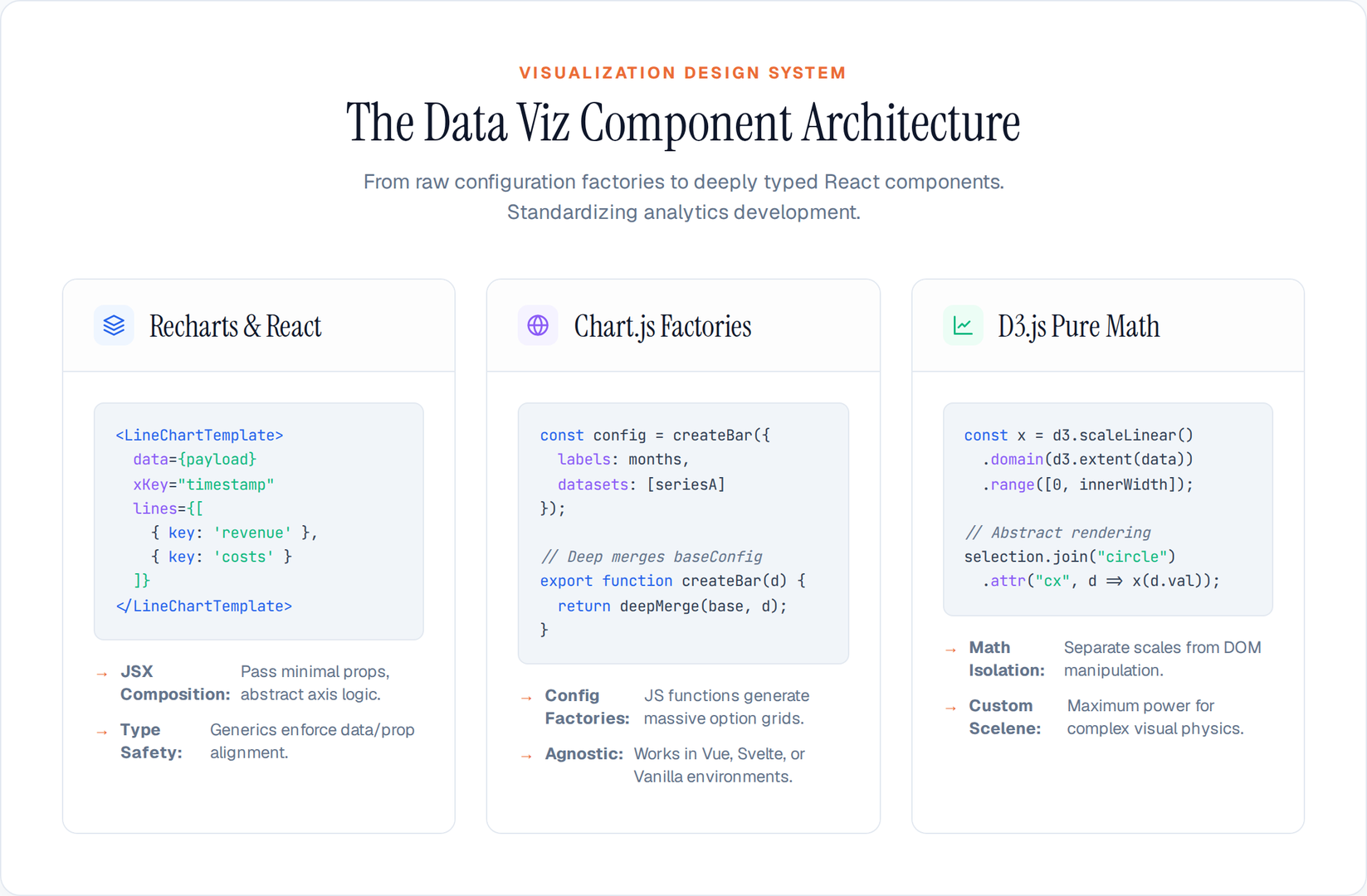
Modern templates solve boilerplate fatigue by encapsulating best practices into drop-in, highly typed components.
A production-grade template provides:
- Design System Consistency: Unified color scales (categorical vs. sequential), standard typography, and predictable spacing.
- Built-In Responsiveness: Native ResizeObserver wrappers to handle container shifts without manual pixel math.
- Strict Type Safety: TypeScript generics that guarantee your data props match your chart configuration, catching errors in the IDE.
- WCAG Compliance: Pre-configured ARIA roles, high-contrast palettes, and keyboard navigable states.
Think of visualization templates as the UI components of the data world. You wouldn't rebuild a <Button> from scratch for every page; you shouldn't rebuild a <LineChart> either.
3. Building Enterprise Recharts Templates (React)
Recharts remains React's most composable charting library. Its declarative API is perfect for wrapping into strictly typed template components.
Here is a baseline pattern for a responsive, typed Line Chart template:
// templates/LineChartTemplate.tsx
import {
  ResponsiveContainer, LineChart, Line, XAxis, YAxis,
  CartesianGrid, Tooltip, Legend
} from 'recharts';
import { chartTheme } from '../styles/theme';

export interface DataPoint {
  [key: string]: string | number;
}

interface LineChartProps<T extends DataPoint> {
  data: T[];
  xKey: Extract<keyof T, string>;
  lines: Array<{
    key: Extract<keyof T, string>;
    color?: string;
    name?: string;
  }>;
  height?: number;
  formatYAxis?: (val: number) => string;
}

export function LineChartTemplate<T extends DataPoint>({
  data,
  xKey,
  lines,
  height = 320,
  formatYAxis = (val) => val.toString(),
}: LineChartProps<T>) {
  if (!data?.length) return <div className="chart-empty">No data available</div>;

  return (
    <div style={{ height, width: '100%' }}>
      <ResponsiveContainer>
        <LineChart data={data} margin={chartTheme.defaultMargins}>
          <CartesianGrid strokeDasharray="3 3" vertical={false} stroke={chartTheme.colors.grid} />
          <XAxis
            dataKey={xKey}
            stroke={chartTheme.colors.axis}
            tick={{ fill: chartTheme.colors.textMuted, fontSize: 12 }}
          />
          <YAxis
            tickFormatter={formatYAxis}
            stroke={chartTheme.colors.axis}
            tick={{ fill: chartTheme.colors.textMuted, fontSize: 12 }}
            width={60}
          />
          <Tooltip
            contentStyle={{ borderRadius: '8px', border: 'none', boxShadow: '0 4px 6px rgba(0,0,0,0.1)' }}
          />
          <Legend wrapperStyle={{ paddingTop: '20px' }} />

          {lines.map((line, idx) => (
            <Line
              key={line.key}
              type="monotone"
              dataKey={line.key}
              name={line.name || line.key}
              stroke={line.color || chartTheme.colors.categorical[idx % chartTheme.colors.categorical.length]}
              strokeWidth={2}
              dot={{ r: 3, strokeWidth: 2 }}
              activeDot={{ r: 6 }}
            />
          ))}
        </LineChart>
      </ResponsiveContainer>
    </div>
  );
}
By decoupling the specific data shape from the chart internals, developers can rapidly drop this into any dashboard view without touching SVG properties.
4. Chart.js Config Factories for Framework-Agnostic Apps
For teams not strictly tied to React, Chart.js remains the standard. Because Chart.js relies on massive configuration objects, the best template approach is using factory functions.
// templates/chartFactory.js
import { brandColors } from './theme';

const baseConfig = {
  responsive: true,
  maintainAspectRatio: false,
  plugins: {
    legend: { position: 'bottom', labels: { usePointStyle: true, padding: 20 } },
    tooltip: {
      backgroundColor: 'rgba(15, 23, 42, 0.9)',
      padding: 12,
      cornerRadius: 6,
      titleFont: { size: 13, family: 'Inter' },
    }
  },
  scales: {
    x: { grid: { display: false } },
    y: { border: { display: false }, grid: { color: '#f1f5f9' } }
  }
};

export function createBarChartConfig(labels, datasets) {
  return {
    type: 'bar',
    data: {
      labels,
      datasets: datasets.map((ds, i) => ({
        ...ds,
        backgroundColor: ds.color || brandColors[i % brandColors.length],
        borderRadius: 4,
        borderSkipped: false,
        barPercentage: 0.6
      }))
    },
    options: {
      ...baseConfig,
      scales: {
        ...baseConfig.scales,
        y: { ...baseConfig.scales.y, beginAtZero: true }
      }
    }
  };
}
This factory guarantees every bar chart across the application respects the brand guidelines and tooltipping logic without deep object spreading in UI files.
5. D3.js and Custom Visualizations
When standard libraries fail to meet highly specific business requirements—such as custom funnel algorithms or complex hierarchal networks—D3.js takes over.
For D3, templates manifest as modular, pure functions combining DOM selection with scale generation. Modern D3 templates usually adopt the pattern of isolating math from DOM rendering:
import * as d3 from 'd3';

export function renderScatterPlot(node, data, options = {}) {
  const { width = 800, height = 400, xDomain, yDomain } = options;
  const margin = { top: 20, right: 30, bottom: 40, left: 50 };

  // 1. Math block (Scales)
  const x = d3.scaleLinear()
    .domain(xDomain || d3.extent(data, d => d.x))
    .range([margin.left, width - margin.right])
    .nice();

  const y = d3.scaleLinear()
    .domain(yDomain || d3.extent(data, d => d.y))
    .range([height - margin.bottom, margin.top])
    .nice();

  // 2. Clear & setup DOM
  const svg = d3.select(node).html("").append("svg")
    .attr("viewBox", [0, 0, width, height])
    .attr("style", "max-width: 100%; height: auto;");

  // 3. Render Axes
  svg.append("g")
    .attr("transform", `translate(0,${height - margin.bottom})`)
    .call(d3.axisBottom(x).ticks(width / 80).tickSizeOuter(0));

  svg.append("g")
    .attr("transform", `translate(${margin.left},0)`)
    .call(d3.axisLeft(y).ticks(height / 50))
    .call(g => g.select(".domain").remove());

  // 4. Render Marks
  svg.append("g")
    .attr("fill", "#6366f1")
    .attr("stroke", "#4f46e5")
    .attr("stroke-width", 1.5)
    .selectAll("circle")
    .data(data)
    .join("circle")
    .attr("cx", d => x(d.x))
    .attr("cy", d => y(d.y))
    .attr("r", 4);

  return svg.node();
}
6. Building a True Visualization Design System
Templates are only the first step. To achieve genuine scale, roll your templates into a unified visualization design system.
A comprehensive system folder structure:
src/ui/visualizations/
  ├── components/          # React wrappers (LineChart, BarChart, Heatmap)
  ├── factories/           # Core configurations (Chart.js / D3 definitions)
  ├── utils/               # Formatters (currency, percentages, dates)
  ├── theme/               # Centralized scale colors and grid standards
  └── hooks/               # useResizeObserver, useChartData
Data visualization templates aren't about cutting corners; they are about not reinventing the wheel on problems solved thousands of times before. By abstracting the complex SVG math, responsive behavior, and accessibility concerns into reusable templates, your engineering teams can finally focus on surfacing actionable insights.