Easy Steps to Automate Python Scripts with Task Scheduler on Windows

Analytics By Hai Ninh

Cover Image

Easy Steps to Automate Python Scripts with Task Scheduler on Windows

Introduction

Every developer reaches a point where manual script execution becomes a time drain. Whether you're scraping data nightly, generating weekly reports, or backing up files at odd hours, standing around waiting for Python scripts to finish feels like a waste of precious minutes. The good news: Windows ships with a powerful automation tool built right in—no paid software required.

Task Scheduler has been a cornerstone of Windows automation for decades, and it remains remarkably effective in 2026. This free utility lets you trigger Python scripts based on time, system events, or user activity. Once configured correctly, your scripts run like clockwork while you focus on more meaningful work.

This guide walks you through automating Python scripts using Task Scheduler in seven straightforward steps. You'll learn how to prepare your script for automation, create the necessary batch files, configure scheduled tasks, and troubleshoot common pitfalls. By the end, you'll have a hands-off automation system that executes your Python code precisely when needed.

Why Automate Python Scripts in 2026

The case for automation has only grown stronger as data-driven workflows become the norm. Modern development teams waste countless hours manually запуска scripts that could easily run themselves. Here's why automating Python scripts through Task Scheduler makes sense this year and every year.

First, consistency matters. Manual execution introduces human error—running scripts at inconsistent times, forgetting to check outputs, or accidentally skipping important intervals. Automated tasks execute identically every time, eliminating variability from your workflow.

Second, scheduling flexibility transforms how you work. Need a data scrape to complete before your morning standup? Schedule it for 5:30 AM. Want weekly analytics compiled every Monday morning? Set it and forget it. Task Scheduler handles the timing so you don't have to remember.

Third, background execution prevents disruption. Unlike running scripts in an open terminal window, automated tasks execute silently in the background. Your screen stays clear, and the script completes without interrupting your current work.

Real-world applications abound. Data pipelines benefit enormously from scheduled execution—imagine waking up to fresh analytics compiled overnight. File management automation handles backup rotation, log cleanup, and organized archiving without any manual intervention. Report generation becomes truly hands-off when scheduled appropriately.

Prerequisites for Python Script Automation

Before diving into Task Scheduler configuration, ensure your environment is properly set up. Taking time on prerequisites prevents frustrating debugging later.

Python must be installed and accessible. Open Command Prompt and run python --version to verify installation. If you receive an error, download Python from python.org and install it. During installation, check "Add Python to PATH" to ensure accessibility.

Your Python script should be thoroughly tested before automation. Nothing breaks an automated workflow quite like a script that fails silently. Run your script multiple times in your development environment, check all outputs, and fix any errors. Place the script in a dedicated folder—something like C:\PythonScripts\ works well—where it can run without path complications.

Administrative privileges matter. Creating and modifying scheduled tasks typically requires administrator access. Ensure you're logged into an account with sufficient permissions or right-click on Task Scheduler and select "Run as administrator."

Basic batch file knowledge helps. You'll create a small .bat file that acts as a bridge between Task Scheduler and your Python script. Don't worry—the syntax is straightforward, and we'll walk through it step by step.

Finally, verify Task Scheduler access. Press Windows key, type "Task Scheduler," and press Enter. The application should open without issues. If access is restricted by your organization, you'll need to work with your IT administrator to gain permissions.

Step 1: Prepare Your Python Script for Automation

Successful automation starts with a script designed to run without supervision. Scripts that work fine interactively may fail when executed by Task Scheduler due to different working directories, missing environment variables, or unexpected input requirements.

Test your script thoroughly before automation. Run it several times from different contexts—Command Prompt, PowerShell, and directly from the script file. Document any errors and fix them proactively.

Save your script in a predictable location. Create a dedicated folder for automated scripts and keep it organized. Something like C:\PythonScripts\daily_report.py makes paths easy to manage. Avoid spaces in folder and file names to prevent parsing issues.

Handle dependencies explicitly. If your script imports external libraries like pandas, requests, or beautifulsoup4, ensure these are installed in your Python environment. Run pip list to check installed packages, and install any missing ones with pip install package_name. Consider creating a virtual environment for complex projects to keep dependencies isolated.

Add logging to your script. When automation fails, debugging becomes much easier with concrete logs. The logging module captures execution details that help identify what went wrong.

import logging
logging.basicConfig(filename='automation.log', level=logging.INFO, format='%(asctime)s - %(levelname)s - %(message)s')
logging.info('Script execution started')
# Your script logic here
logging.info('Script execution completed')

Handle file paths carefully. Scripts often break because relative paths work from the development directory but fail when executed from different locations. Use absolute paths or dynamically determine the script's directory:

import os
script_dir = os.path.dirname(os.path.abspath(__file__))
data_file = os.path.join(script_dir, 'data.csv')

If your script requires command-line arguments, document them clearly. You'll need to reference these when configuring Task Scheduler.

Step 2: Create a Batch File to Execute Your Python Script

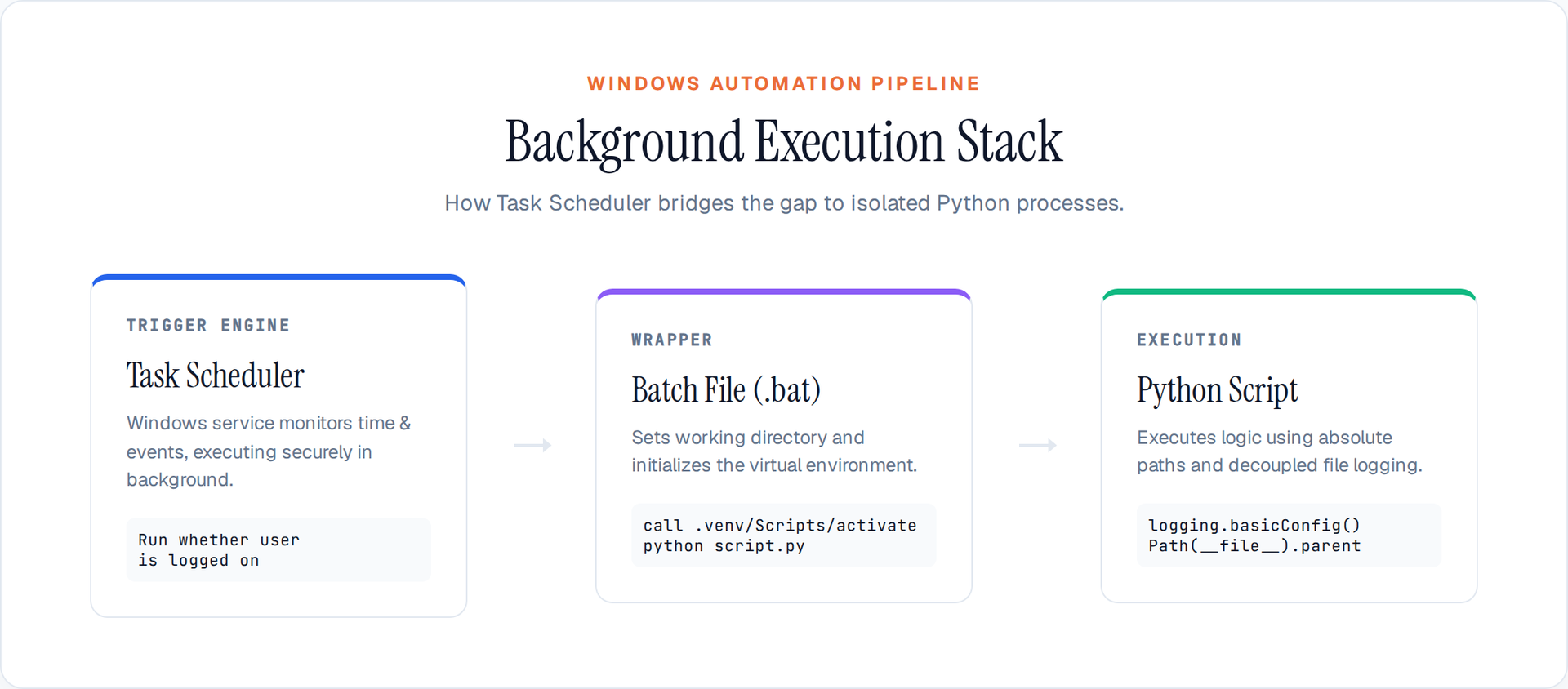
Task Scheduler doesn't run Python scripts directly—it launches programs. The solution is a batch file that calls Python with your script as an argument. This simple text file bridges the gap between Windows automation and Python execution.

Open a text editor. Notepad works fine, though Notepad++ provides syntax highlighting if you prefer something more robust.

Create the batch file content using this template:

@echo off
"C:\Path\To\Python\python.exe" "C:\Path\To\YourScript.py"
exit

Replace the paths with your actual Python executable location and script path. To find your Python executable location, run where python in Command Prompt—it typically returns something like C:\Users\YourName\AppData\Local\Programs\Python\Python311\python.exe.

Remove the @echo off line temporarily if you want to see what's happening during testing. Add it back once everything works.

Remove the exit command if you want the Command Prompt window to remain open after execution—this helps with debugging but isn't necessary for production automation.

Save the file with a .bat extension. Name it descriptively: run_daily_report.bat, execute_scraper.bat, or similar. Save it in the same folder as your Python script for organizational consistency.

Test the batch file by double-clicking it. Your Python script should execute just as it would from the command line. If errors appear, troubleshoot them now before proceeding to Task Scheduler configuration.

Pro tip: If your script needs to run from a specific working directory, add a cd command before the Python call:

@echo off
cd /d C:\Path\To\Working\Directory
"C:\Path\To\Python\python.exe" "C:\Path\To\YourScript.py"

Step 3: Open and Navigate Task Scheduler

Task Scheduler lives in the Windows administration tools, though finding it varies slightly depending on your Windows version. The interface has remained remarkably consistent, so these instructions apply broadly.

Method 1: Start menu search

Press the Windows key, type "Task Scheduler," and press Enter. The application appears in the results. Click to open it.

Method 2: Run dialog

Press Windows key + R, type taskschd.msc, and press Enter. This opens Task Scheduler directly.

Method 3: Computer Management

Right-click the Start button, select "Computer Management," navigate to "System Tools," then "Task Scheduler." This approach provides additional context about your system.

Once open, you'll see three main sections. The left panel displays a folder tree with Task Scheduler Library and subfolders. The center panel shows task lists within the selected folder. The right panel contains actions like "Create Basic Task," "Import Task," and "Enable Task."

Take a moment to explore. Click through folders, view existing tasks if any exist, and familiarize yourself with the interface. Understanding the layout makes the next steps much smoother.

Step 4: Create a Basic Scheduled Task

With your batch file ready and Task Scheduler open, it's time to create your automated task. The Basic Task wizard provides a guided approach perfect for most use cases.

In the right panel, click "Create Basic Task." The wizard opens with a multi-step process.

Name and description

Enter a descriptive name like "Daily Data Scraper" or "Weekly Report Generator." Add a description explaining what the task does. Good names and descriptions help when managing multiple automated tasks.

Trigger selection

Choose when the task should run. Available options include:

  • Daily: Run at a specific time every day
  • Weekly: Run on selected days of the week
  • Monthly: Run on specific dates each month
  • One time: Single execution at a specified datetime
  • At logon: Run whenever any user logs into Windows
  • At startup: Run when Windows boots (before user login)
  • On an event: Trigger based on Windows event log entries

For most Python automation, Daily or Weekly provides the right balance. Select your preferred option and click Next.

Trigger configuration

Set the specific time and, if applicable, day selections. For daily tasks, choose a time when your computer is typically on but you're not actively using it—early morning or late evening work well. Configure these settings and proceed.

Action selection

Choose "Start a program" and click Next. This tells Task Scheduler to execute your batch file.

Program configuration

Click Browse and navigate to your batch file. Select it and click Open. The path appears in the Program/script field.

The "Add arguments" and "Start in" fields are optional but sometimes necessary. If your script requires command-line arguments, enter them in the arguments field. The "Start in" field should contain the folder where your script and batch file live—this ensures consistent working directories.

Completion

Review your settings on the final screen. Check "Open the Properties dialog" if you want to modify additional settings, or simply click Finish to create the task.

Your task now appears in Task Scheduler. It won't run immediately unless you've configured immediate execution—you'll need to wait for your trigger time or run it manually to test.

Step 5: Configure Advanced Task Properties

The Basic Task wizard gets you most of the way there, but the Properties dialog offers additional control over how your automated task behaves.

Right-click your newly created task and select "Properties." Several tabs appear with powerful options.

General tab

  • Configure for: Select your Windows version. "Windows 10/11" covers most modern systems.
  • Run whether user is logged on or not: Check this for background execution without requiring a user session. Note that if selected, you'll need to provide credentials when saving.
  • Run with highest privileges: Check this if your script requires administrator access.

Triggers tab

View your existing trigger here. Click "New" to add additional triggers—a script might need to run both daily and weekly, for instance.

Actions tab

Shows the program being executed. You can add multiple actions that run sequentially if your workflow requires it.

Conditions tab

This tab controls when your task actually runs:

  • Start only if the computer is on AC power: Prevents battery drain on laptops—uncheck for always-on servers
  • Wake the computer to run this task: Useful for early morning runs on sleeping machines
  • Start only if the following network connection is available: Ensures internet-dependent scripts only run when connected

Settings tab

  • Allow task to be run on demand: Enables manual execution via right-click menu
  • If the task fails, restart every X minutes: Adds resilience for flaky scripts
  • Stop the task if it runs longer than: Prevents runaway scripts from consuming resources indefinitely
  • Delete the task if it does not run again: Keeps your scheduler clean for one-time tasks

Configure these settings to match your specific requirements, then click OK. You may be prompted to enter credentials if you've selected "Run whether user is logged on or not."

Step 6: Test Your Automated Task

With the task configured, testing becomes essential. Manual execution confirms everything works before you trust it to run unattended.

Method 1: Right-click execution

In Task Scheduler, right-click your task and select "Run." Watch the task status change to "Running" in the center panel.

Method 2: Task History

Click the task to select it, then look at the bottom panel. The "History" tab shows execution attempts. Successful runs display green checkmarks; failures show red X icons with error details.

Verify script output

Check whatever output your script produces—files created, reports generated, database updates. Confirm the results match what you'd expect from manual execution.

Common first-run issues

  • Wrong paths: Double-check Python executable and script locations
  • Missing dependencies: Virtual environments don't automatically activate in batch files
  • Working directory issues: The "Start in" field in task properties often resolves this
  • Permission errors: Ensure your task has appropriate permissions

If the task fails, right-click and view the Properties. Check the History tab for error messages—they're usually quite specific. Common fixes include adjusting the "Start in" directory, adding full paths to batch files, or running with elevated privileges.

Step 7: Monitor and Maintain Your Automation

Your automated task runs successfully—congratulations! But automation requires occasional attention to remain reliable over time.

Regular verification

Periodically check that your task continues running as expected. Set a calendar reminder to review Task Scheduler weekly or monthly. Look for tasks that have stopped running or show consistent failures.

Log review

Your Python script logs (from Step 1) provide crucial debugging information. Check them regularly, especially if Task Scheduler shows execution but results seem off.

Dependency updates

Python library updates occasionally change behavior or deprecate features. When you update libraries on your development machine, test the same updates on your automation environment. Keep the automation Python environment synchronized with your development environment.

Task Scheduler maintenance

Windows updates occasionally reset or modify scheduled tasks. After major Windows updates, verify your tasks still exist and function correctly.

Path considerations

If you reinstall Python or move files, update your batch file paths accordingly. Absolute paths prevent issues when switching directories.

Documentation

Keep a simple document noting what each automated task does, what scripts it calls, and any special configurations. Future you will thank present you when troubleshooting issues.

Troubleshooting Common Task Scheduler Problems

Even well-configured tasks occasionally fail. Here are solutions for the most frequent issues.

Task doesn't run at scheduled time

Check the task is enabled (not disabled). Verify the trigger is correctly configured—wrong dates or times prevent execution. Ensure your computer was awake at the scheduled time if "wake to run" isn't enabled.

Task runs but script fails

Open the batch file in a Command Prompt window to see error messages directly. Verify all file paths are absolute, not relative. Check that Python is accessible from the system PATH, not just your user account's PATH.

Task runs but produces wrong results

Working directory issues commonly cause this. Add the correct "Start in" path in task properties. Ensure any relative file references in your Python script account for the actual working directory during execution.

"Access is denied" errors

Right-click the task, select Properties, and on the General tab check "Run with highest privileges." Verify your user account has read/write access to folders where the script reads or writes files.

Task runs multiple times

Multiple triggers often cause this. Check the Triggers tab and remove duplicates. Also verify "If the task is already running, then the following rule applies" setting in the Settings tab—preventing parallel runs usually resolves this.

Python not found

The system account (used when "run whether user is logged on" is checked) may have different PATH settings. Use full absolute paths to Python in your batch file rather than relying on PATH resolution.

Conclusion

Automating Python scripts with Task Scheduler transforms repetitive manual processes into reliable, hands-off workflows. The seven steps covered here—preparing your script, creating a batch file, configuring Task Scheduler, testing, and maintaining—provide a complete framework for Windows automation in 2026.

The beauty of this approach lies in its simplicity. No paid tools required. No complex configuration. Just Windows' built-in capabilities combined with Python's versatility. Whether you're automating data collection, report generation, file management, or any repetitive Python workflow, Task Scheduler delivers.

Start with a simple script to learn the process. Once you're comfortable, expand to more complex automations. The time invested in setup pays dividends through freed-up hours and consistent, reliable execution. Your automated tasks will run perfectly while you focus on more challenging and rewarding work.

Author

Hai Ninh

Author

Hai Ninh

Software Engineer

Love the simply thing and trending tek