Reading and Exporting Data from Google Sheets with Python & Jupyter in 2026
Cover Image

Google Sheets remains one of the most widely adopted collaborative data layers in modern business operations. However, manual CSV downloads and un-batched API scripts create brittle ETL pipelines and trigger Google Cloud rate limits. In 2026, combining Python, Jupyter Notebooks, modern gspread (v6.x+), and google-auth provides a high-throughput, automated pipeline for bidirectional spreadsheet synchronization.
This guide walks through setting up modern service account credentials, high-performance batch reading and writing, zero-copy Pandas DataFrame ingestion, and quota-resilient export patterns.
1. Modern Authentication with Google Cloud & Service Accounts
Legacy scripts frequently rely on the deprecated oauth2client library. Modern Python automation uses google-auth and gspread's native service_account() loader.
Setting Up the Service Account:
- Open the Google Cloud Console and create or select your project.
- Enable both Google Sheets API and Google Drive API in APIs & Services.
- Navigate to Credentials > Create Credentials > Service Account.
- Generate and download a JSON private key, saving it securely (e.g.,
service_account.json). - Share target Google Sheets: Open your Google Sheet, click Share, and grant Editor access to the service account email (
client_emailfrom your JSON).
Establishing the Connection:
import gspread
from google.oauth2.service_account import Credentials
import pandas as pd

# Define modern API scopes
SCOPES = [
    "https://www.googleapis.com/auth/spreadsheets",
    "https://www.googleapis.com/auth/drive"
]

# Authenticate via google-auth
credentials = Credentials.from_service_account_file(
    "service_account.json",
    scopes=SCOPES
)

# Initialize authorized gspread client
gc = gspread.authorize(credentials)

# Open spreadsheet by key or URL (preferred over ambiguous title matching)
SHEET_KEY = "1BxiMVs0XRA5nFMdKvBdBZjgmUUqptlbs74OgvE2upms"
sh = gc.open_by_key(SHEET_KEY)
worksheet = sh.worksheet("Sheet1")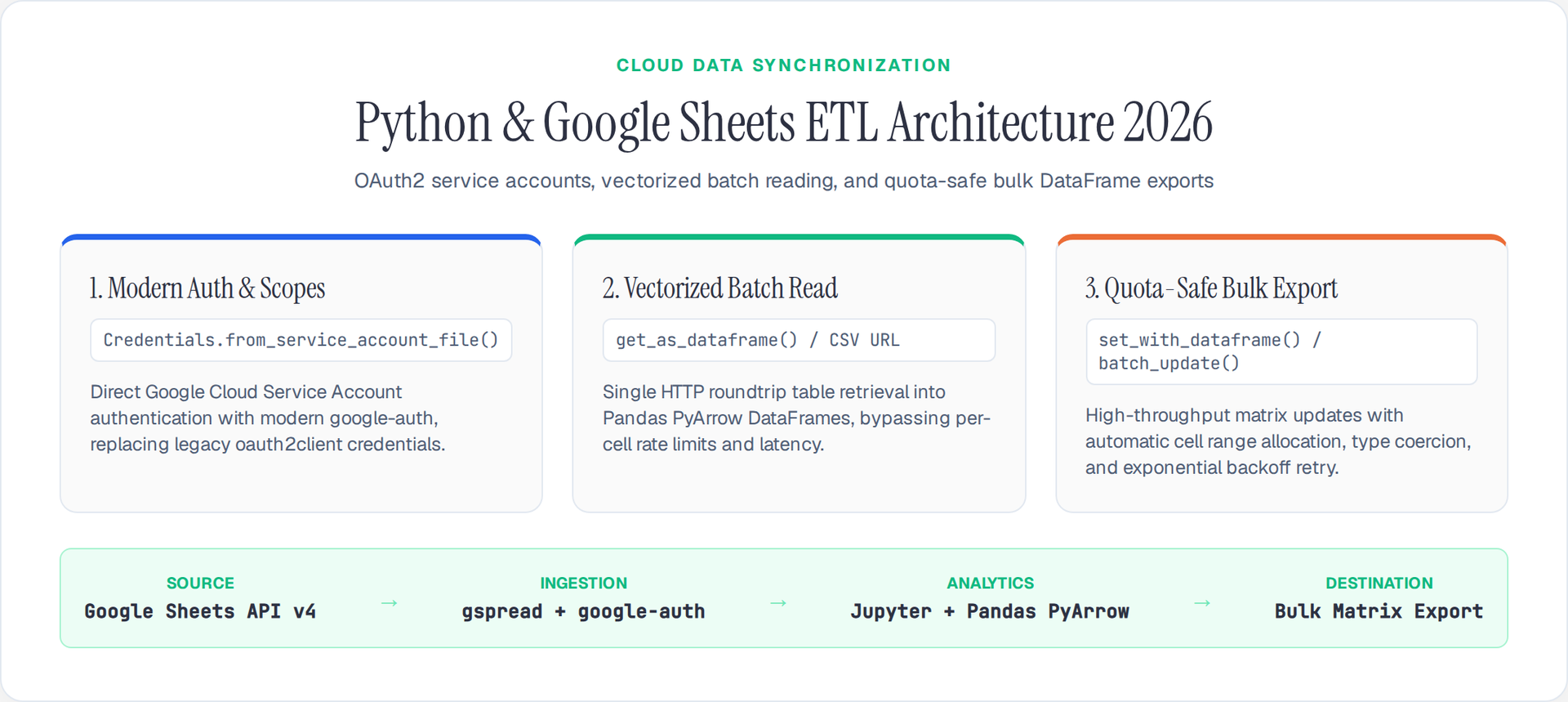
2. High-Throughput Batch Reading into Pandas DataFrames
Individual cell lookups (cell(row, col)) execute separate HTTP requests, quickly exhausting Google’s quota (300 requests per minute per project). Instead, fetch entire tables in a single HTTP roundtrip:
# Method 1: Direct record ingestion with gspread
records = worksheet.get_all_records()
df = pd.DataFrame(records, dtype_backend="pyarrow")

# Method 2: Fast vectorized ingestion via gspread-dataframe
from gspread_dataframe import get_as_dataframe

# Extracts headers, cleans whitespace, and preserves typing in one call
df_fast = get_as_dataframe(
    worksheet,
    evaluate_formulas=True,
    parse_dates=True,
    header=0
).dropna(how="all")

print(f"Ingested {len(df_fast)} rows with Arrow schema:")
print(df_fast.info())
Fast Read-Only Alternative (Zero Auth): If the Google Sheet is published or shared with "Anyone with link can view", you can read directly into Pandas via the CSV export endpoint without API credentials:
sheet_id = "1BxiMVs0XRA5nFMdKvBdBZjgmUUqptlbs74OgvE2upms"
gid = "0"  # Specific worksheet tab ID
csv_url = f"https://docs.google.com/spreadsheets/d/{sheet_id}/export?format=csv&gid={gid}"

df_direct = pd.read_csv(csv_url, engine="pyarrow")
3. Vectorized Data Transformation in Jupyter
Once data is loaded into Jupyter, use vectorized operations rather than iterating over rows:
# Example: Clean revenue figures, compute quarterly growth, and format dates
df['Revenue'] = df['Revenue'].astype('string[pyarrow]').str.replace('$', '').str.replace(',', '').astype('float64[pyarrow]')
df['Date'] = pd.to_datetime(df['Date'], engine="pyarrow")

# Aggregate KPI summary by region
summary_df = df.groupby('Region', as_index=False).agg(
    total_revenue=('Revenue', 'sum'),
    avg_deal_size=('Revenue', 'mean'),
    transaction_count=('Revenue', 'count')
).sort_values(by='total_revenue', ascending=False)

summary_df
4. Bulk Exporting and Updating Without Quota Exhaustion
Writing cell-by-cell is the primary cause of pipeline failures. Always use batch updates or DataFrame utilities to write hundreds of cells in a single API call.
from gspread_dataframe import set_with_dataframe

# Ensure target tab exists or create it
target_sheet_title = "KPI_Summary_2026"
try:
    target_ws = sh.worksheet(target_sheet_title)
    target_ws.clear()  # Wipe stale data
except gspread.WorksheetNotFound:
    target_ws = sh.add_worksheet(title=target_sheet_title, rows=100, cols=10)

# High-performance bulk write: handles headers, missing values, and formatting
set_with_dataframe(
    target_ws,
    dataframe=summary_df,
    row=1,
    col=1,
    include_index=False,
    include_column_header=True,
    resize=True
)
Direct Batch Range Updates via Raw gspread:
# Prepare a matrix of values
matrix_data = [
    ["Metric", "Value"],
    ["Total Pipelines", len(df)],
    ["Total Volume ($M)", round(df['Revenue'].sum() / 1e6, 2)],
    ["Sync Timestamp", pd.Timestamp.now().isoformat()]
]

# Write entire block in one API request starting at cell A1
target_ws.update(
    values=matrix_data,
    range_name="F1:G4",
    value_input_option="USER_ENTERED"  # Interprets formulas and numbers natively
)
5. Production Resilience: Handling Quotas and Formatting
When executing automated synchronizations on scheduled intervals, implement exponential backoff to handle transient Google Sheets API 429 rate limit errors:
import time
from gspread.exceptions import APIError

def robust_sheet_update(worksheet, range_name, values, max_retries=5):
    for attempt in range(max_retries):
        try:
            return worksheet.update(
                values=values,
                range_name=range_name,
                value_input_option="USER_ENTERED"
            )
        except APIError as e:
            if "RESOURCE_EXHAUSTED" in str(e) or e.response.status_code == 429:
                wait_time = (2 ** attempt) + 1
                print(f"Quota exceeded. Retrying in {wait_time}s...")
                time.sleep(wait_time)
            else:
                raise e
    raise RuntimeError("Failed to update Google Sheet after max retries")
6. Summary Checklist for 2026 Automations
- Retire
oauth2client: Migrate all authentications togoogle-auth(Credentials.from_service_account_file). - Reference by Sheet ID: Use
open_by_key()rather than title search to prevent collisions and failed lookups. - Always Batch: Replace
update_cell()withset_with_dataframe()orworksheet.update()to stay well beneath API quotas. - Leverage PyArrow Backends: Ingest spreadsheet records with
dtype_backend="pyarrow"for immediate memory efficiency in Jupyter. - Use CSV Export for Public Feeds: Eliminate API setup overhead entirely for read-only dashboards and public benchmarks.
By modernizing your Google Sheets Python workflow with batch endpoints and robust authentication, you can build reliable data ingestion pipelines that scale seamlessly from ad-hoc Jupyter exploratory analysis to automated production reporting.
Author

Author