How to Automate Data Entry in Google Sheets: A Practitioners Field Guide
Cover Image
There is a spreadsheet somewhere that someone is manually updating right now. Row by row. Column by column. Copy, paste, switch tabs, copy again. It takes 45 minutes a day and nobody notices it until the person who owns it goes on holiday.
That spreadsheet is a problem. Not because manual work is beneath anyone - but because every minute spent moving data between systems is a minute not spent noticing that the data is wrong, outdated, or worth acting on. Automation is not about saving time. It is about making the data useful faster than the context around it changes.
This guide covers the Google Sheets automation patterns that actually hold up in production. Starting with the simplest option and working toward the ones that require code.
Why Your Manual Data Entry Is Costing More Than You Think
The cost of manual data entry is not the time spent entering data. It is the cost of data that arrives too late to be useful, the cost of typos that pass through without being caught, and the cost of the institutional knowledge that walks out the door every time the person who built the process leaves.
A common pattern in small operations: someone builds a Google Form, links it to a Sheet, and calls it done. That works until the form starts collecting data faster than anyone can process it, or until someone needs a filtered view of only last week's entries, or until the data needs to sync somewhere that is not a spreadsheet.
The automation gap is not about whether you have a form. It is about whether the form output is connected to the decisions that depend on it.
The Two Paths: Google Forms (Zero Code) vs Apps Script (Custom Logic)
Google Sheets automation splits into two distinct paths. Knowing which one to use before you start determines whether your setup survives contact with real users.
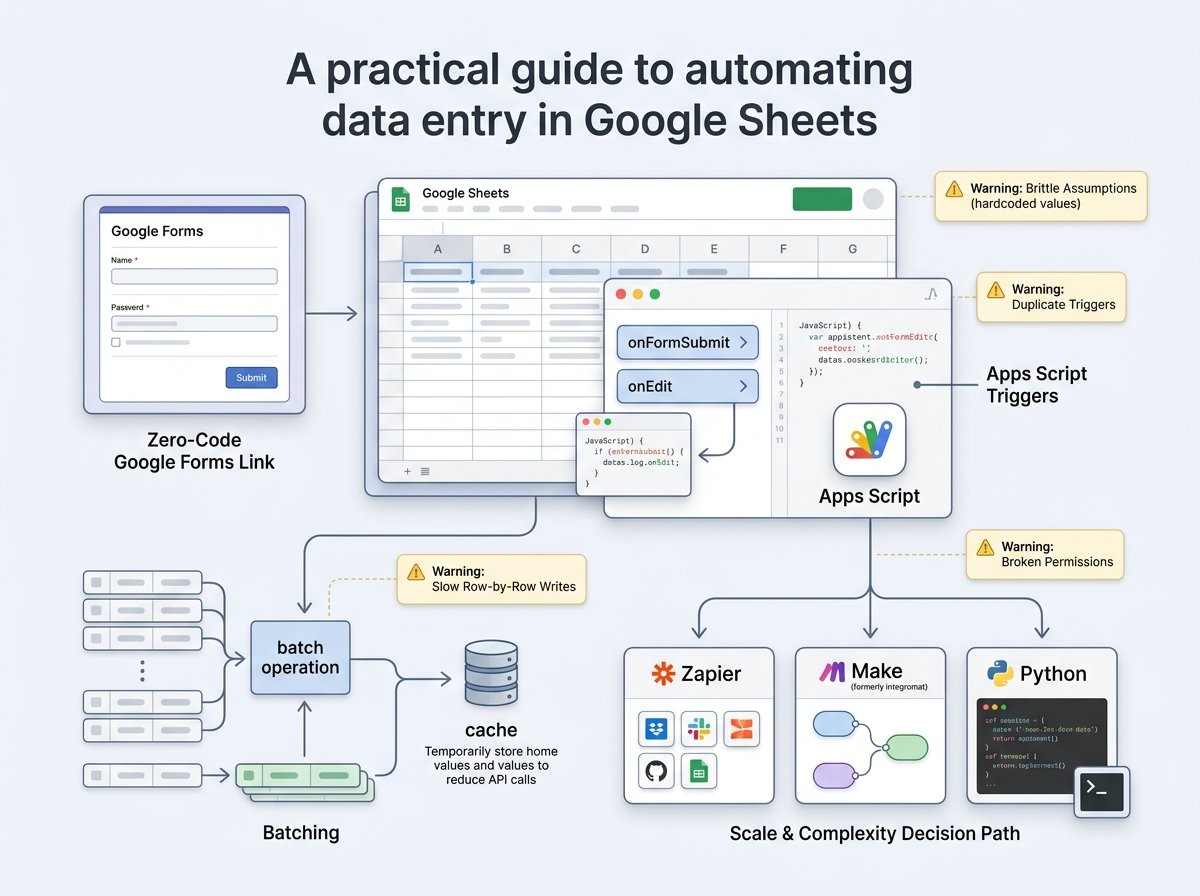
Path one: Google Forms linked directly to a spreadsheet. Responses go into a tab called "Form Responses" and that is the entire system. This is the zero-code option. It requires no setup beyond the form builder. It handles moderate data volumes well and is easy for non-technical team members to maintain. The limitation is that anything beyond writing responses row-by-row requires something else.
Path two: Apps Script for custom logic. Apps Script is JavaScript that runs inside Google's infrastructure. It can read form responses, transform them, push them to other sheets, send emails, call external APIs, and run on a schedule. The cost is complexity - you write code, you manage triggers, and you deal with Google's execution limits.
The decision rule: if the automation is "form response goes to a sheet", use the native link. If the automation involves logic, multiple sheets, or external systems, use Apps Script or a no-code tool.
How to Link Google Forms to Sheets - And When to Go Beyond the Basics
The native link lives inside the form itself. Open the form, go to the Responses tab, tap the spreadsheet icon, and choose whether to send responses to a new sheet or an existing one. Once linked, every form submission creates a new row in the target spreadsheet automatically.
This is sufficient for a large proportion of data collection use cases. For most teams collecting intake forms, feedback, or sign-ups, this is the entire system.
Where it starts to fall short:
When you need to process the data before it lands. If you need to categorize a response, assign it to a team member, or flag it based on content - the native link just writes raw data. You need either Apps Script with an onFormSubmit trigger, or a no-code automation tool.
When multiple sheets need the same data. If a form submission needs to write to a master sheet and a team-specific sheet simultaneously, the native link cannot do that without Apps Script.
When you need to notify someone. The native link does not send emails. Apps Script can, via GmailApp.sendEmail(). No-code tools like Zapier can too, without code.
The Google Apps Script FormApp documentation covers the onFormSubmit trigger in detail. The pattern you will use most:
function onFormSubmit(e) {
const responses = e.response.getItemResponses();
// Extract data from the form response
const sheet = SpreadsheetApp.getActiveSpreadsheet();
// Process, transform, route
}
This runs every time someone submits the form. It is the foundation of every advanced Forms-to-Sheets automation.
Apps Script Patterns That Actually Scale
Most Apps Script tutorials show you how to do something once. Production automation has to do it reliably, on time, without you watching it.
Three patterns that matter in practice:
Triggers
Time-driven triggers run on a schedule. onFormSubmit runs when a form is submitted. The common mistake is building your logic into a button or manual run and forgetting to set up the trigger for automated execution.
function createTimeDrivenTrigger() {
ScriptApp.newTrigger('myScheduledFunction')
.timeBased()
.everyHours(1)
.create();
}
Set triggers once. They persist until you delete them. Check your trigger quota - free accounts get 6 triggered executions per minute and 90 minutes of execution time per day.
Batching
The most common performance mistake in Apps Script is writing to a sheet one row at a time inside a loop. Each sheet.appendRow() call is a separate API call. For 100 rows, that is 100 API calls. For 10,000 rows, your script times out.
// Slow: calls API once per row
for (const row of data) {
sheet.appendRow(row);
}

// Fast: single API call with setValues
const lastRow = sheet.getLastRow();
sheet.getRange(lastRow + 1, 1, data.length, data[0].length).setValues(data);
Use getLastRow() to find where to write, then setValues() to write everything in one call. This is the single highest-impact optimization you can make to any Apps Script data pipeline.
Cache
If your script calls an external API or does expensive computation, cache the result:
const cache = CacheService.getScriptCache();
const cached = cache.get('myKey');
if (!cached) {
const data = fetchExpensiveData();
cache.put('myKey', JSON.stringify(data), 3600); // 1 hour TTL
return data;
}
return JSON.parse(cached);
Caching turns a 2-second API call into a 10-millisecond cache read. For scripts running on a schedule, this alone can be the difference between finishing before the quota limit and hitting it.
The Five Mistakes That Break Apps Script in Production
After enough Google Sheets automations, a pattern of failure emerges. These five mistakes account for most production breakdowns.
Mistake 1: No error handling. Scripts fail. APIs return errors. Sheets change. Without a try/catch that logs what went wrong, you have no way to know why your automation stopped working.
try {
const data = UrlFetchApp.fetch(apiUrl);
// process
} catch (err) {
Logger.log('Automation failed: ' + err.message);
// Optionally notify via email
}
Mistake 2: Hitting the 6-minute execution limit. Long-running scripts terminate at 6 minutes in the consumer version of Google Sheets. If your automation has to process 50,000 rows, batch it. Process a page, store progress in PropertiesService, run again on the next trigger.
Mistake 3: Using getLastRow in loops. Calling sheet.getLastRow() inside a loop recalculates the sheet's last row on every iteration. Pull it once before the loop:
const lastRow = sheet.getLastRow(); // call once
for (let i = 2; i <= lastRow; i++) { ... }
Mistake 4: No version control. Every time you save a script, it overwrites the previous version. There is no built-in rollback. Use named versions - create a new version before significant changes, so you can roll back to a known good state via the Apps Script dashboard.
Mistake 5: Forgetting that time-driven triggers do not run if the script has already exceeded its daily quota. A script that runs out of daily execution time before completing its work does not queue the remaining executions for later. It just stops. If your automation is hitting quota limits regularly, split the work or move to a more appropriate tool.
When to Graduate to Zapier, Make, or Python
Apps Script is the right tool until it is not. These are the signals that it is time to move on.
Complexity threshold: If your automation connects more than three systems, involves conditional logic that is hard to read in script form, or requires non-technical team members to manage - a no-code tool like Zapier or Make handles the orchestration better. They also provide visual run histories, which makes debugging much easier than reading Apps Script logs.
Scale threshold: If your script is regularly hitting the 6-minute execution limit or the daily quota, moving to Python with a cron job or a cloud function removes the limit entirely. Python pandas processing 100,000 rows takes seconds, not minutes, and does not run inside Google's infrastructure.
Reliability threshold: If the automation failing silently would cause real problems - compliance data, financial records, customer records - you want a tool with proper alerting, retry logic, and run history. Zapier and Make both provide this. Apps Script provides basic email notifications on failure but no retry queue.
The honest heuristic: if you find yourself writing more than 200 lines of Apps Script, consider Python. If you find yourself spending time managing your automation instead of trusting it, move to a no-code tool.
Tip: Digital Inspiration by Amit Agarwal has some of the most practical Apps Script tutorials on the web, including working examples for form-to-sheet email routing and multi-sheet sync - worth bookmarking before you start building from scratch.
The Automation You Build Is the Automation You Trust
The best data entry automation is one you forget about. Form submission arrives, data appears in the right place, relevant people get notified, reports update themselves. It runs for months without needing attention.
That only happens if you build it with the same care you would give any production system: error handling, batching, monitoring. The spreadsheet problem does not announce itself. It just slowly consumes time until someone builds the thing that replaces it.
Start with the form-to-sheet link. Add Apps Script when you need logic. Graduate to no-code or Python when the script becomes harder to maintain than the process it is replacing. Each transition is a signal that the automation has proven its value - worth having is worth having well.
Start with the form. Then make it smarter when you know what smarter actually needs to mean.